


AI Video Generator - Toki
3.465.00 Reviews
App Specs
- Version
- 2.1.0-26020382
- Updated On
- License
- Free
- Downloads
- 100,000+
- Developer
- Guru AI Lab
- Categories
- Art & Design
- Platform
- Android
Screenshots
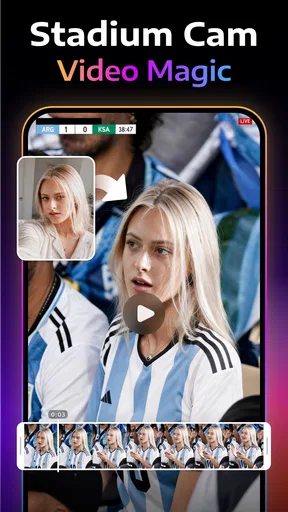
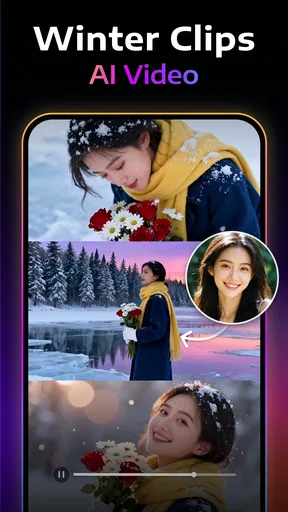





 Analysis by AppCompare
I’d start with a specific idea rather than expecting an app to invent the whole project for me. Maybe I want a short clip to share with friends, a visual for a small business post, or a quick way to give a still image some movement. That is the sort of creative task where an AI video tool can be useful: it can help me get from a rough concept to something worth reviewing, while leaving me to decide whether the result actually fits.
AI Video Generator - Toki is an art-and-design app from Guru AI Lab, built around AI-assisted video creation and enhancement. Its store summary names Gemini 3 Pro, also called Nano Banana Pro, and Sora 2; that gives a sense of the AI models the app highlights, but I would still treat the output as a starting point rather than a finished creative decision. The app is free to install, rated Teen, and has in-app purchases ranging from $4.99 to $119.99 per item, so I’d check the costs shown in the app before building a workflow around a paid option.
Start with a brief, not a blank screen
The most useful first step is to decide what the video needs to do. A birthday greeting, a product mood piece, and a quick social post call for different images, pacing, and tone. I’d write down the intended audience and one main idea before opening the generator. That small bit of preparation helps keep the prompt focused and makes it easier to judge whether an AI result is on target, rather than merely eye-catching.
The app is free, but that doesn’t mean every possible creation path will necessarily be free. With paid items listed from $4.99 to $119.99, I’d avoid tapping through purchase screens casually, especially when testing several ideas. A sensible approach is to explore the available options first, decide what outcome matters, and only consider a paid choice if it solves a specific need. That is more useful than spending just to see what happens.
From first idea to a shareable clip
Jumping into AI Video Generator - Toki is as easy as pie. Once you download the app, you’re greeted with a sleek, user-friendly interface that screams simplicity. No need to be a tech wizard to get started here. As soon as you open it, the app walks you through a quick tutorial that even a total newbie can understand. It’s like having a guide on your shoulder, showing you the ropes.
The app supports both Android and iOS, so no one’s left out of the fun. I found the installation process to be seamless, with the app running smoothly without any hiccups. It’s lightweight too, which means it won’t hog your device’s resources—great news for those of us who are constantly battling storage issues!
Turning an idea into a draft
Here’s where things get seriously cool. Toki uses cutting-edge AI technology to help you whip up videos like a pro. You can choose from a variety of templates that cater to different themes—whether it’s a birthday, a business presentation, or just a fun social media post. The AI does most of the heavy lifting, allowing you to focus on unleashing your creativity.
Worth Reading Before You Choose

EA SPORTS FC Mobile 26 Is a Bigger Football Game, but It Takes Time

Flipboard Shows What News Apps Must Do Beyond the Feed

Switching to Android Auto Means Rethinking Your Driving Routine

Google Calendar Makes a Crowded Week Easier to Manage

Ludo King Makes the Most of the Minutes Between Plans

Baby Panda World Brings Quick Play to Modern Phones, but Its Game Library Feels Busy
For a more reliable first attempt, I’d keep a prompt concrete: name the subject, the setting, the mood, and what should happen in the shot. If I’m making a clip for a weekend café post, for example, I’d decide whether the point is the atmosphere, a particular drink, or the people behind the counter before I describe it. One clear focal point is easier to assess than a prompt that asks for several scenes, a specific story, and multiple visual styles all at once.
A useful trade-off with generated video is that a polished-looking image can still miss the brief. I’d check whether the main subject stays recognizable and whether the action makes sense from beginning to end, rather than judging the draft only by its first frame. If an important detail is wrong, simplifying the prompt and trying a narrower idea may be more productive than adding lots of extra instructions.
Shaping the draft into your own work
One feature that stood out to me was the app’s ability to automatically sync your video to music. It’s like having a built-in DJ that knows exactly when to drop the beat. And speaking of music, Toki offers a decent library of tracks, or you can upload your own tunes if you prefer something specific.
While the AI takes care of many aspects, you’re not left out of the creative process. Toki allows for a significant degree of customization. From tweaking colors, fonts, and transitions to adding text overlays, the app gives you the freedom to make your content uniquely yours. It’s intuitive and doesn’t require a steep learning curve, which is a huge plus for busy bees like us.
I especially loved the drag-and-drop feature that makes adding elements a breeze. You can rearrange clips, apply filters, and preview changes in real-time. It’s as if the app encourages you to experiment without fear of messing up, which is quite liberating.
For a practical edit, I’d make one change at a time and preview it before stacking on more effects. That makes it easier to spot whether a font, transition, or filter improves the message or just adds noise. Text deserves particular attention: a title that looks stylish in the editor may compete with the subject once the clip is viewed on a small phone screen. Keeping the wording short and checking the preview at its intended viewing size can save a needless round of revisions.
Handing the video off
Once you’ve created your masterpiece, Toki makes it super easy to share your videos across multiple platforms. Whether you want to stun your Instagram followers or present a project at work, the app has got you covered. It offers various export options, ensuring your video looks top-notch no matter where it’s viewed.
The app also supports direct sharing to social media, which is a time-saver. No need to download and re-upload. Plus, the videos are optimized for each platform, so you don’t have to worry about cropping or quality loss.
For anything more important than a casual post, I’d watch the exported or shared version all the way through before sending it on. A video can feel fine while I’m editing and still have a title that appears too late, a music change that feels abrupt, or an ending that cuts off the point. If I’m passing a draft to a colleague, I’d also send a short note about what feedback I need—such as whether the message is clear—rather than asking them to comment on everything at once.
This is also where Toki differs from a conventional timeline editor. A standard editor gives me direct control over every cut and adjustment, which is better when timing must be exact or a client has specific requirements. Toki’s appeal is the quicker route from an idea to an AI-assisted draft, followed by hands-on changes. I’d choose between them based on the job: use generation to explore a visual direction, and use a familiar editor when precision and repeatability matter more than speed.
Where the workflow can stumble
AI-generated work is not automatically ready for public use just because it looks finished. I’d pay close attention to faces, lettering, product details, and any visual element that carries factual meaning. A small oddity may be harmless in a playful clip but distracting in a business post. If the video represents a real product or person, I’d compare the result against the real reference before sharing it.
Another practical consideration is how much control the task requires. If I need exact shot timing, a consistent look across many separate clips, or precise edits to existing footage, a traditional video editor may be the better choice. Toki makes more sense when the aim is to create or explore a video idea with AI support, not when I need a frame-by-frame production workflow. The distinction matters: a faster draft is valuable, but it does not remove the need to review it.
The app’s current version is 2.1.0-26020382, and it needs Android 7.0 or later on Android devices. Its average rating is 3.4 from around 944 ratings, with 65 written reviews and over 100K installs. I’d read that rating as a reason to set realistic expectations, not as a verdict on whether it will suit me. AI tools can feel very different depending on the prompt, the intended result, and how much editing I’m willing to do afterward.
Who I’d recommend it to
I’d suggest Toki to someone who enjoys experimenting with visual ideas, wants a faster route to a social clip, or would rather adjust an AI-assisted draft than learn a complex editing setup first. It may also suit a small creator who needs to test a few moods for a post before settling on a direction. For an everyday example, I could sketch a short announcement for a community event, generate a draft around its central theme, add a concise title, check the music and pacing, then share it with an organizer for a quick sense-check before publishing.
I’d be more cautious if I were making a time-sensitive client deliverable, a video with strict brand rules, or anything where exact wording and consistent details are essential. I’d also think twice if I only want to trim and join ordinary phone footage; a conventional editor is usually a more direct fit for that simple job. And if I’m unsure whether I’ll use paid options, I’d explore the free path first and keep the listed purchase range in mind rather than assuming every tool is included at no cost.
My take after following the whole process
All in all, AI Video Generator - Toki is a gem for anyone looking to create compelling videos without the hassle of learning complex software. It’s like having a mini production studio right in your pocket. The blend of AI-driven automation with customizable options strikes a perfect balance, making it suitable for both beginners and seasoned video creators.
If you’re on the lookout for an app that combines ease of use with powerful features, give Toki a spin. It’s not just another video editing app; it’s a creative companion that inspires you to tell your story with flair. So, what are you waiting for? Dive in and let Toki transform your ideas into stunning visual narratives!
A final check before choosing it
The key question I’d ask myself is whether I want help inventing a visual draft or precise control over footage I already have. If it’s the first, Toki’s AI focus and editing options make it worth exploring. If it’s the second, a conventional editor is likely to feel more predictable. Either way, I’d treat the generated clip as a draft, review it carefully, and make sure any paid option is worth the result I’m trying to achieve.
Pros
- Intuitive user interface for easy navigation.
- Offers a wide range of customization tools.
- High-quality video output options.
- Quick processing time for video generation.
- Compatible with multiple video formats.
Cons
- Limited free features compared to premium.
- Requires stable internet for best performance.
- Occasional app crashes reported by users.
- Lacks advanced editing features for experts.
- In-app purchases can be expensive.
FAQs for AI Video Generator - Toki
What platforms does the AI Video Generator - Toki support?
The AI Video Generator - Toki is available for both Android and iOS devices. It offers a seamless user experience across smartphones and tablets, ensuring that you can create and edit videos on the go, regardless of your device. Make sure your operating system is up to date for optimal performance.
How user-friendly is the Toki app for beginners?
Toki is designed with simplicity in mind, making it highly accessible for beginners. The app features an intuitive interface with step-by-step guides. It also includes tutorials and helpful tips, allowing users with no prior editing experience to create professional-quality videos with ease.
What are the main features of the AI Video Generator - Toki?
Toki offers a variety of features including AI-driven video editing, customizable templates, and automatic scene detection. Users can add music, text, and effects effortlessly. The app also supports multiple video formats and resolutions, making it versatile for different types of projects.
Is there any cost associated with using Toki?
Toki is available as a free download with basic features accessible at no cost. However, it offers in-app purchases for advanced features and premium content. Users can choose a subscription plan that suits their needs, ensuring access to additional tools and resources for enhanced video creation.
Does Toki require an internet connection to function?
Toki can function offline with basic features, allowing users to work on their projects without an internet connection. However, certain features, such as cloud storage access and some AI-driven functionalities, require an internet connection to operate effectively. This ensures you can save and share your creations seamlessly.


